GoFullPage and NeoReader: the short version
GoFullPage is one of the best-known Chrome extensions for full page screen capture, and it does that job well: click the icon and it scrolls the page and saves one tall image. It also offers a paid Premium upgrade for extra features.
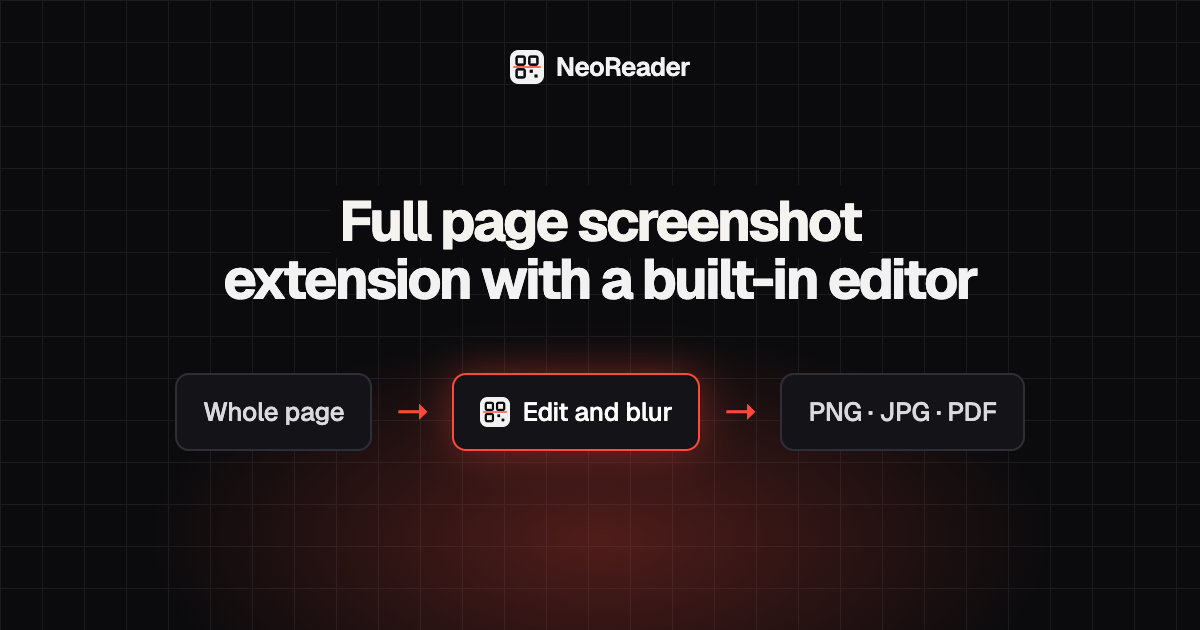
NeoReader Full Page Screenshot is an independent extension for Chrome, Edge and Firefox. It is not affiliated with or endorsed by GoFullPage. It captures whole pages too, and puts the editor, blur tool and PDF export in the free version so you do not need a second app or a subscription.
What you get with NeoReader Full Page Screenshot
- Capture the entire scrolling page, the visible part, or a dragged area.
- Sticky headers are handled so they appear once, not on every screen of the image.
- Editor: crop, arrows, boxes, highlighter, text and emoji.
- A pixel blur for emails, names and account numbers that cannot be reversed.
- Save PNG, JPG or PDF with smart page breaks, or copy to the clipboard.
- Optional URL and date stamp for records and receipts.
- Keyboard shortcuts, no account, and nothing kept once you close the editor.
How to switch from GoFullPage
- Install NeoReader Full Page Screenshot for Chrome, Edge or Firefox.
- Pin it to the toolbar so the icon is where your old one was.
- Set your preferred keyboard shortcut in the browser's extension shortcut settings.
- Capture a page, try the editor and blur tool, and save as PNG, JPG or PDF.
- Keep both installed while you compare, then remove the one you do not use.
Which one should you choose
If you only ever need a plain full page PNG and you are happy with GoFullPage, there is no pressing reason to change. It is a well-established tool.
If you share screenshots with clients, colleagues or support teams, the editor is where NeoReader earns its place. Blurring a customer's details, pointing at a bug and saving a readable PDF all happen in the same window, free. And because screenshots are made and edited in your browser and never sent to our servers, it suits work you would rather keep private.
What to check in any full page screenshot extension
- Where screenshots go: kept in your browser, or sent to a server or cloud account.
- Whether it needs an account or sign-in before you can save.
- How it handles sticky headers, chat widgets and images that load as you scroll.
- Which export formats are free: PNG, JPG, PDF, clipboard.
- Whether editing and blur are included, or part of a paid tier.
- Which browsers it supports, if you use more than one.
- What permissions it asks for when you install it, and whether they match what it does.